Finding and managing tickets
Every ticket bought or entered in your competitions is listed on the Tickets page in the dashboard sidebar, titled Purchased Tickets. Search by ticket number, sequence or customer, filter by competition, purchase date or status, open the order behind any ticket, and export the list.
What each row shows
- Ticket #: the ticket number the customer sees.
- Competition: which competition it belongs to.
- Status: Active for a valid entry, or Voided once it has been removed from the draw.
- Buyer: the customer.
- Order: the order the ticket came from. Click it to open the order.
- Instant win: whether the ticket won an instant prize.
- Purchased: when it was bought.
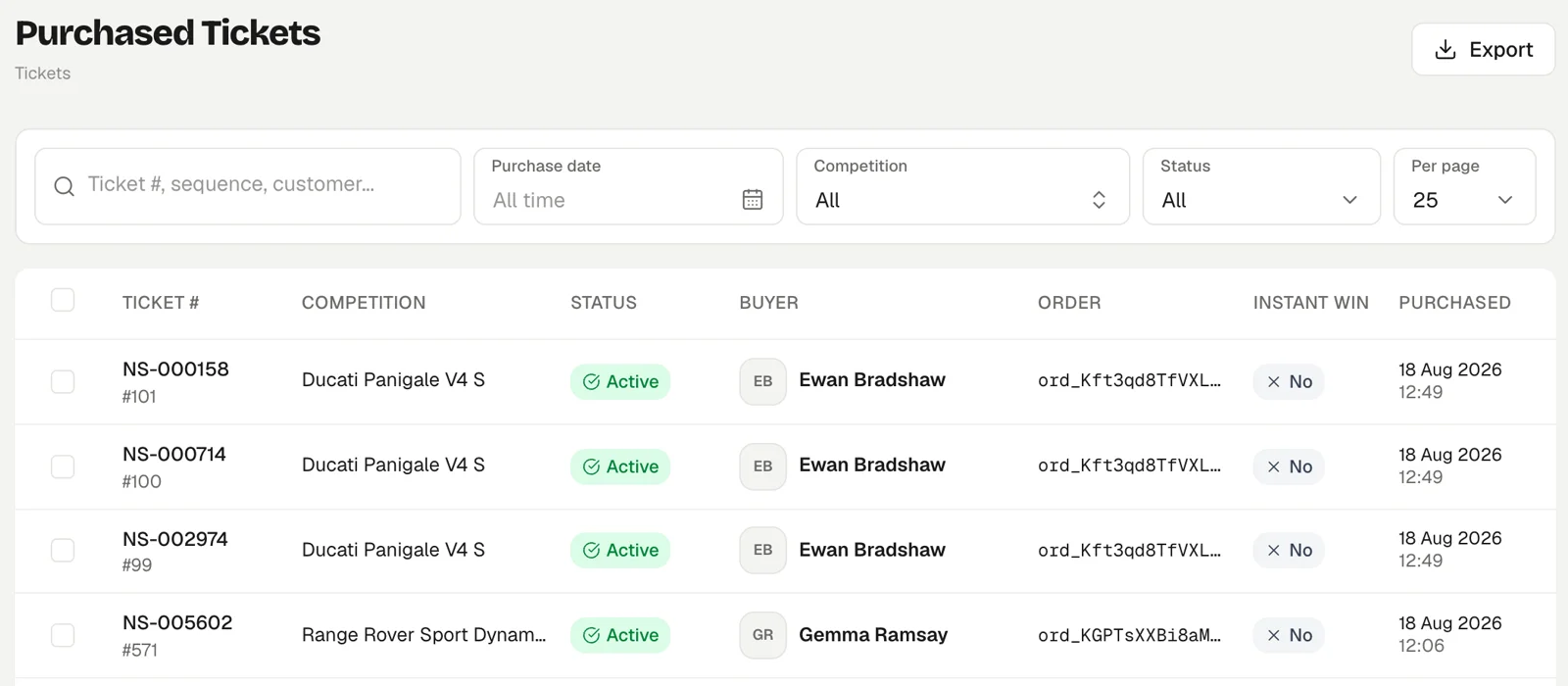
Ticket numbers are assigned automatically when a purchase completes. Free postal entries and free bundle tickets are real tickets and appear here like any other.
Finding a ticket
- Type in Ticket #, sequence, customer... to search by ticket number, or by the customer's name or email.
- Purchase date narrows to a date range.
- Competition shows one competition's tickets, which is the quickest way to see every entrant in it.
- Status shows only Active or Voided tickets.
- Sort by Ticket # or Purchased by clicking the column heading.
The total count can take a moment to appear on a large store; the list itself loads first.
Exporting
Click Export, then Export all to download every ticket matching your filters as a CSV, or tick rows first and choose Export selected.
Changing or removing tickets
Tickets are purchase records, so the Tickets page is read-only: you cannot edit or delete a ticket here.
To take tickets out of a draw, fully refund or cancel the order they came from (open it from the Order column). Its tickets are voided, and any unclaimed prize they won is voided with them. A partial refund leaves the tickets in place. See Managing refunds and cancellations.
To add tickets for someone who entered for free by post, create a postal order. See Free postal entry and skill questions.
Customers looking for their tickets
Customers see their own ticket numbers in their account on your website, under My Tickets.