The daily game
The daily game gives your signed-in customers a few free plays every day to win rewards such as website credit, bonus spins or a discount code. You design the game and its prizes under Marketing > Daily Game, and customers play it on your store's daily game page.
Don't see Daily Game in your sidebar? Add the Daily game app from Apps. See Adding and removing apps.
Game settings
Under Daily game settings:
- Enable daily game: switches it on.
- Plays per day: 1 to 10. Plays reset at midnight in your store's timezone.
- Game style: Carousel, Crate Opening, Prize Wheel, Scratch Card, Pachinko, Penalty Shootout, Coin Flip, Board Game or Slot Machine. Creature Battle and Deal or No Deal are in beta and appear only on stores the Basecomp team has switched them on for; ask us if you would like to try them.
- Theme: shown when the chosen style has more than one look. Creature Battle has Halloween, Fireworks Night and Christmas themes. A theme changes only how the game looks, never the prizes or odds. It goes live as soon as you save and stays on until you switch it back, so set it back to Classic when the season ends.
- Offer a banker cash-out (Deal or No Deal): for the Deal or No Deal style, the banker offers a credit cash-out based on the prize values still in play. Customers take the offer or open their box for the real prize.
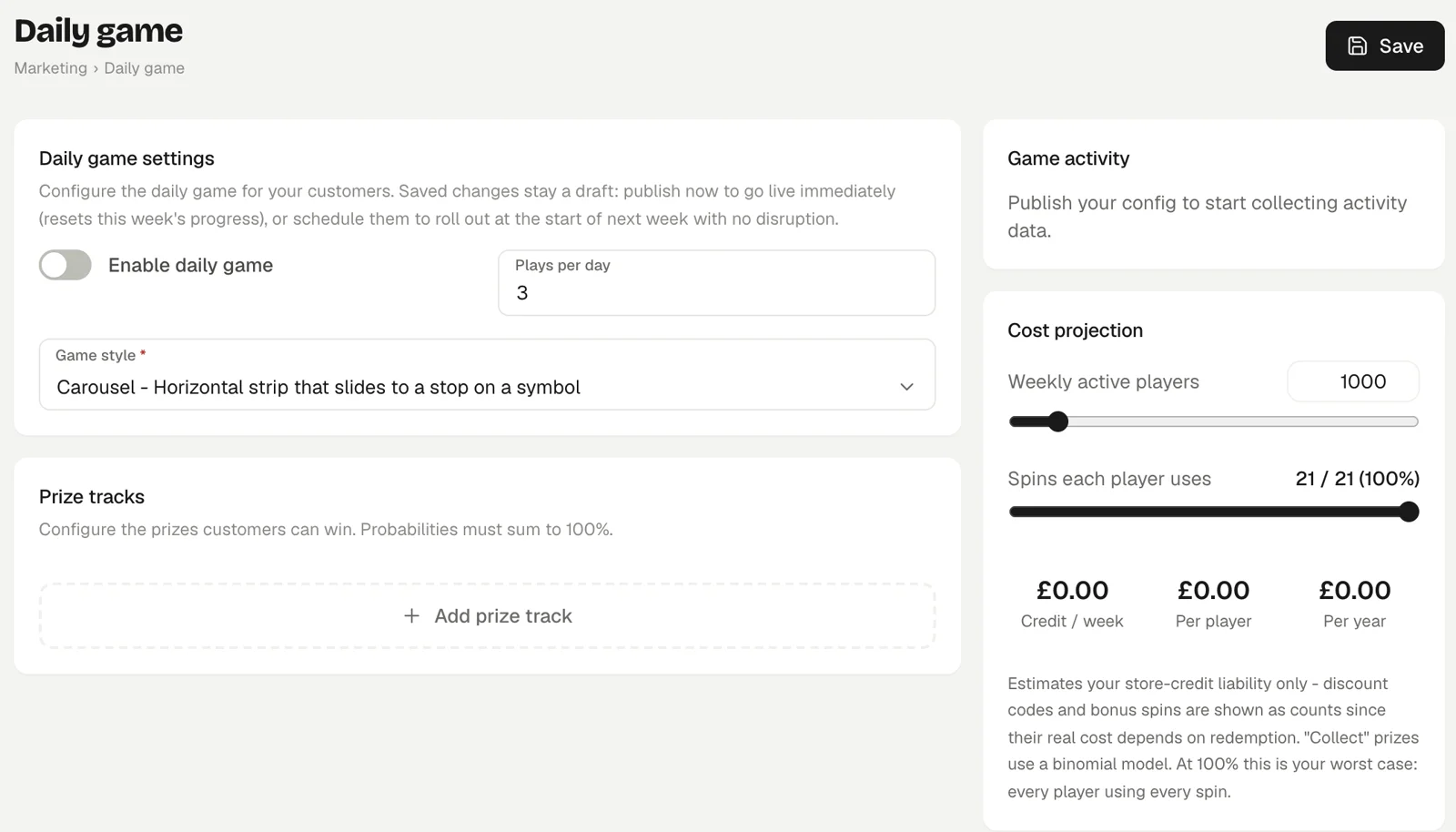
Prize tracks
Each outcome of a play is a track. Under Prize tracks, set for each one:
- Label, Icon and Color: how it looks in the game.
- Probability (%): the chance of landing on it. All tracks together must add up to 100%.
- Type: None (Loss), Website credit, Free spins or Discount code.
- Win mode: Instant win, or Collect 3, 5, 7 or 10 to win. A collect track pays out when the customer lands on it that many times in a week.
- The reward: an Amount of website credit, a number of Spins, or a Discount code chosen from your coupons.
- Banker value (Deal or No Deal only): the per-play value the banker counts for that prize.
The game needs exactly one loss track and at least one prize track. It refuses a set-up where a weekly collection target cannot be reached in a week with the plays available, unless free spins can top them up.
Draft, publish and schedule
Save keeps your changes as a draft, so you can edit safely. To put them live you have two choices:
- Save & publish: goes live on your store immediately and resets this week's progress. If players are part-way through a collection, you are warned how many will lose unclaimed weekly rewards and asked to type CONFIRM.
- Schedule for next Monday: rolls the changes out at the start of next week with no disruption. This week's players keep the current game and their progress until then.
While a change is waiting, the page shows what players are getting right now. The Configuration status panel shows any problems, unpublished changes, a scheduled change, or "Up to date".
Planning the cost
The Cost projection panel estimates what the game pays out. Enter Weekly active players and Spins each player uses to see expected website credit per week, per player and per year, plus discount codes issued and bonus spins granted.
Game activity
Once published, Game activity shows the weekly cycle, customers playing, spins this week, rewards claimed and the top players this week.
What customers see
The game lives on your store's daily game page, which the site builder creates. Visitors who are not signed in see "Log in to play". Signed-in customers get their plays each day, and weekly collection progress resets every Monday. Website credit they win goes into their store credit to spend on tickets.
Each customer's daily game history is also on their customer record.