Setting up Fena pay by bank
To set up pay by bank, generate an API key in your Fena portal, enter its Terminal ID and Terminal secret in Settings > Payment Gateways > Configure Fena, set Fena's webhook URL to Basecomp, then set the gateway to Active and save. Your checkout then shows a Pay by bank button beside your card payments, or on its own if Fena is your only active gateway.
You need a Fena account first. Use the Website button on the Fena card to go to their site.
1. Generate an API key in Fena
In the Fena portal, go to Settings > API Keys > Generate API key and choose the role Payment integration. Fena shows you:
- the key's ID, shown in its row on the API Keys page. Basecomp calls this the Terminal ID.
- the Terminal secret. Fena shows this once, when the key is generated, so copy it straight away.
2. Enter the key in Basecomp
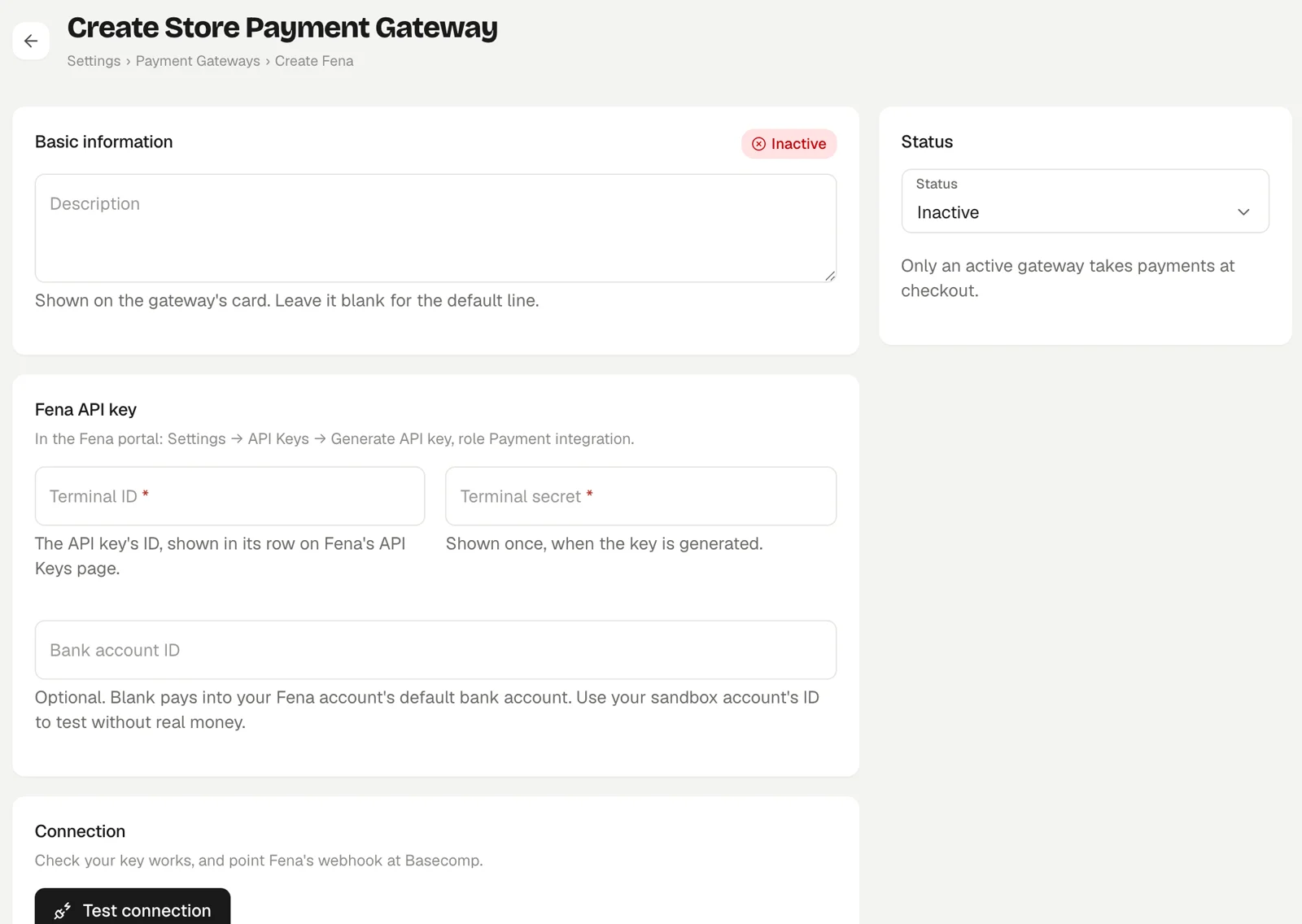
- Go to Settings > Payment Gateways and click Configure Fena on the Fena card.
- Under Fena API key, paste the Terminal ID and Terminal secret. Both are required.
- Bank account ID is optional. Leave it blank to be paid into your Fena account's default bank account, or enter the ID of a different account.
- Under Connection, click Test connection. It reads your Fena account with this key and shows the result. Nothing is charged.
3. Point Fena's webhook at Basecomp
Fena tells Basecomp a payment has gone through by calling a webhook. On the same API key in the Fena portal:
- set Webhook / Payment Notification URL to
https://basecomp.io/webhooks/fena/live - tick Retry webhook on failure
The redirect URL in Fena can be anything: each payment sends the buyer back to your own checkout.
4. Switch it on
In the Status box choose Active, then click Save. Only an active gateway is offered at checkout.
Testing pay by bank
Unlike card payments, a test-mode store does not get a built-in test page for pay by bank. It tests against Fena's real sandbox instead. To test without real money, put your Fena sandbox account's ID in Bank account ID. A sandbox payment will never complete an order on a live store, so remember to clear that field (or change it to your real account) before you go live.
What customers see
When Fena is active and there is something to pay after any website credit, checkout shows a Pay by bank button with "Pay straight from your banking app. No card needed." The customer picks their bank on Fena's page, approves the payment in their banking app and comes back to your site. A bank payment can take a moment to confirm, so the order may show as processing until Fena reports it paid. If they cancel in Fena, the order is cancelled and any website credit they used is returned.
Fees
There is no separate bill from Fena. Basecomp charges your pay by bank fees to the card on your Billing page once a month, for the month before. The Billing page shows the rate, this month's payments and the fees so far. Save a card on its Payment method tab first: if Basecomp bills your fees and there is no card, the Fena settings screen and the Billing page both warn you. Pay by bank keeps working either way.
Refunds
Pay by bank payments cannot be refunded from the Basecomp dashboard, because a refund is a new bank payment you authorise yourself. Refund the customer from your Fena dashboard, then cancel the order in Basecomp without refunding so its tickets are taken out of the draw. See Managing refunds and cancellations.
If a pay by bank payment arrives after the tickets it was for are no longer available, Basecomp gives the customer website credit for the amount paid instead.